
INTRANETS
SharePoint: Page Checker Chrome Extension
Can your intranet authors easily scan their SharePoint pages for quality assurance, hyperlink reliability and accessibility issues? This chrome browser extension empowers them to do this easily.
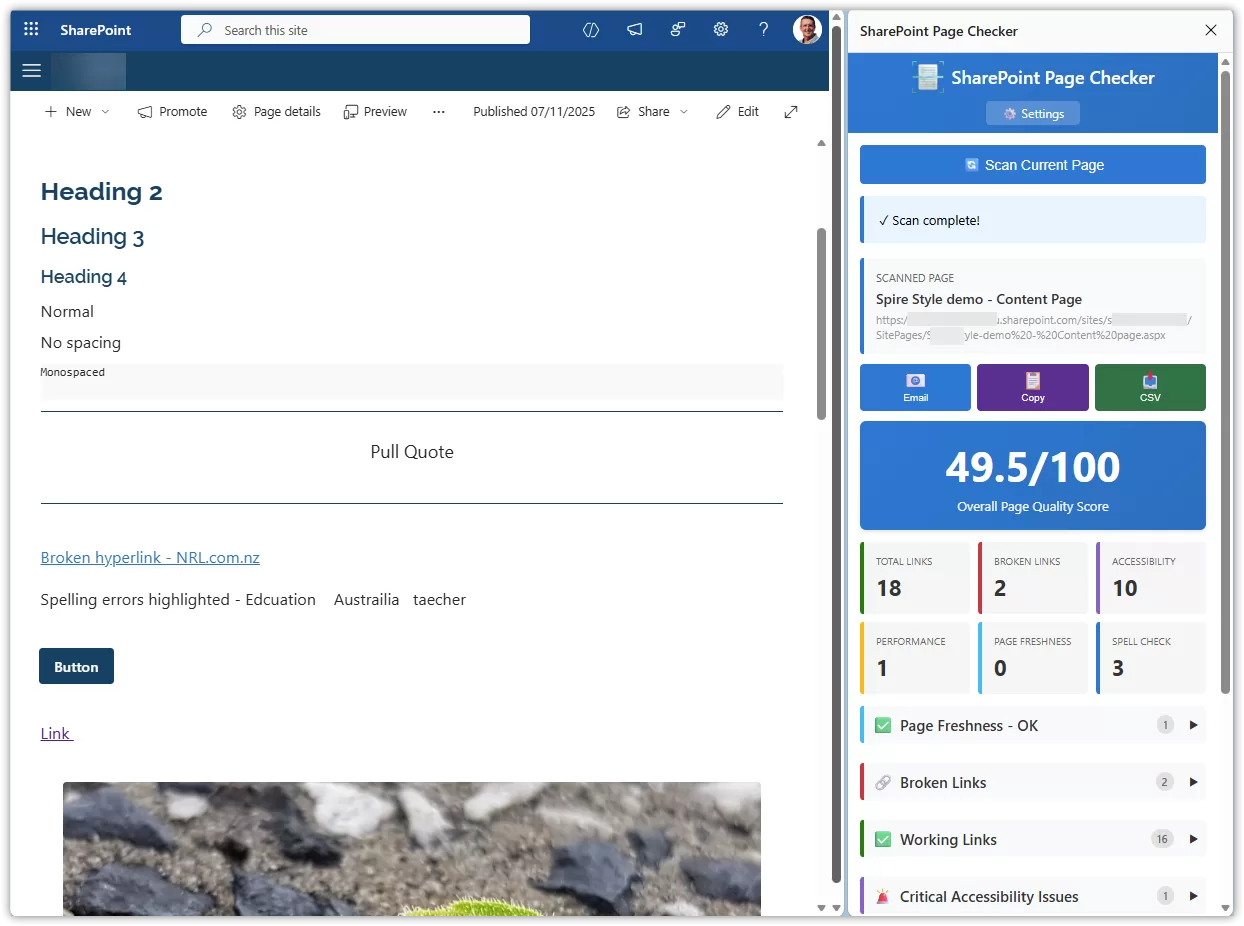
Introducing SharePoint Page Checker: Your Quality Assurance Companion for SharePoint
I manage a Sharepoint intranet for a largish organisation and we have a decentralised author model for content. Around 200 of our 15000 staff have contribute access to areas of the intranet and regularly upload documents and create and edit pages to support staff in getting their jobs done, informing them about the organisations activities or providing tools and informtion for each employee (leave, pay, other personal data).
I built a Chrome web browser extension called SharePoint Page Checker – designed to help SharePoint authors maintain high-quality, accessible, and up-to-date SharePoint content.
What is SharePoint Page Checker?
SharePoint Page Checker is a free Chrome extension that scans your SharePoint pages to identify potential issues before they impact your users. Think of it as having a quality assurance expert review every page with just one click.
What Does It Check?
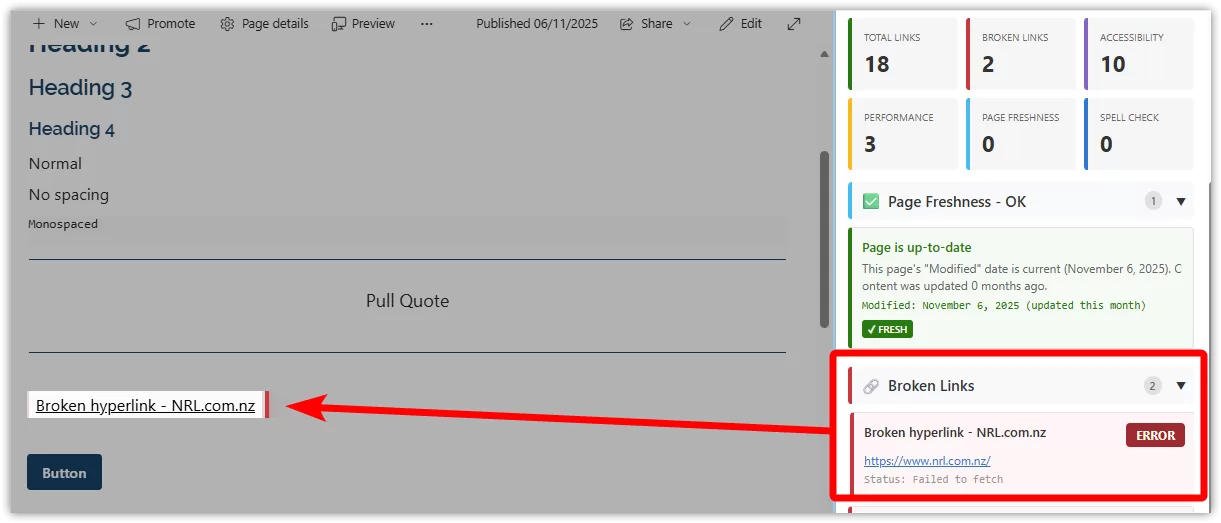
Broken Links
Never let your users encounter a dreaded 404 error again. The extension checks every link on your page – including document links, external websites, and email addresses – and tells you exactly which ones are broken and why. You’ll see clear status codes (like 404 for “not found” or 403 for “access denied”) so you know how to fix them. The Chrome Extension SharePoint Page Checker will also highlight on the SharePoint pasge exactly where the broken link is so it’s easy for your users to find.
Accessibility Issues
Make your content accessible to everyone. The extension checks for common WCAG compliance issues like:
– Images missing alternative text
– Links with unclear text like “click here”
– Form inputs without labels
– Heading structure problems
Each issue comes with a clear explanation and a recommended fix, making it easy to improve accessibility even if you’re not an expert.
Page Freshness
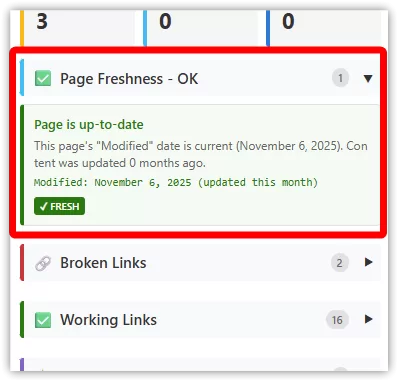
Keep your content current. The extension automatically detects when a SharePoint page was last updated and flags pages that might need reviewing. You can customise the thresholds – for example, flagging pages older than 6 months for review and pages older than 12 months as critically outdated.
Use the last Modified date by default or specify a custom date field you might be using in SitePages.
Performance Issues
Speed up your pages. The checker identifies:
– Large images that slow down loading
– Images with excessive dimensions
– Unoptimised image formats
– Pages with too many images
– Slow-loading SharePoint web parts
You’ll get specific recommendations like “This image is 5000×4000 pixels but only displays at 500×400 – resize it to improve loading speed.”
Spelling Errors
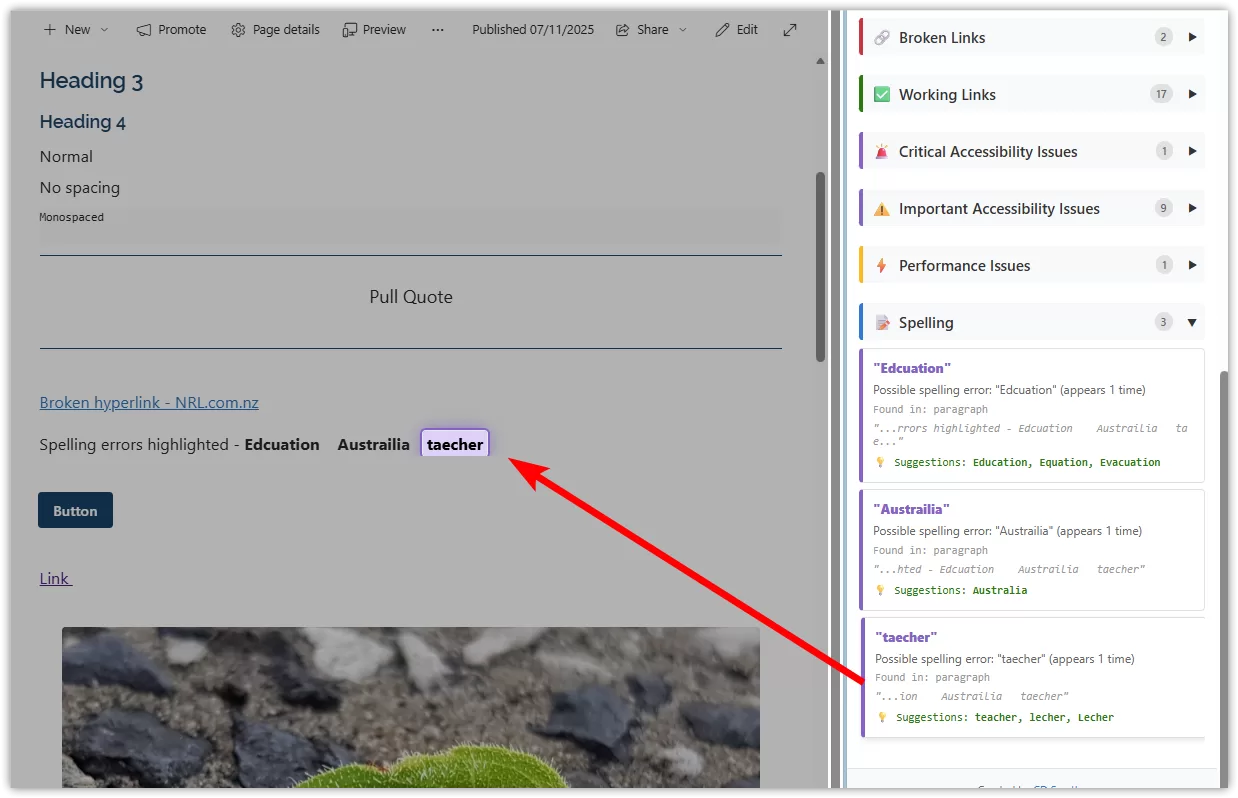
Catch typos before your users do. The built-in spell checker scans headings, paragraphs, and other text content. It supports US, UK, and Australian English, and you can add your own words including company-specific terms and acronyms.
The page dims and spelling mistake is highlighted when hovering over the issue card in the sidepanel to help users find the error.
How It Works
Using SharePoint Page Checker is incredibly simple:
1. Install the Sharepoint Page Checker extension from the Chrome Web Store
2. Navigate to any SharePoint modern page
3. Click the extension icon to open the side panel
4. Press “Scan Current Page”
5. Review your results in an easy-to-read format
The scan typically takes 10-30 seconds depending on the complexity of your page.
Open the Settings page to customise your scanning tool even further.
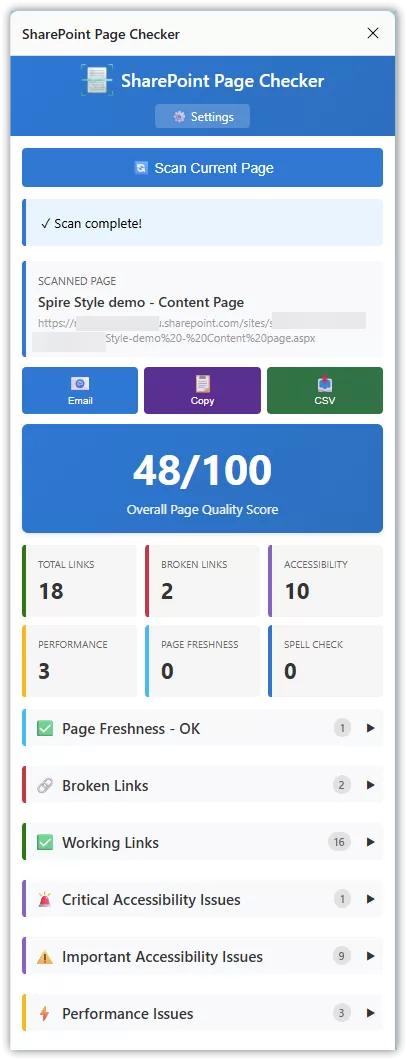
Understanding Your Results
After scanning, you’ll see:
– Overall Quality Score (0-100): A quick snapshot of your page’s health (just an indicator)
– Summary Dashboard: Total links, broken links, accessibility issues, and performance problems at a glance
– Detailed Results: Organised into collapsible sections for easy navigation
Each issue card includes:
– Clear description of the problem
– Where it’s located on the page
– How to fix it
– Relevant standards (like WCAG guidelines)
Interactive Features
What makes SharePoint Page Checker special is its interactivity:
- Hover to Highlight: Move your mouse over any issue card, and the problematic element on your page lights up with a colored border. The page automatically scrolls to show you exactly where the issue is.
- Click to Verify: All links are clickable so you can quickly verify issues manually.
- Color-Coded: Issues are color-coded by severity (red for critical, orange for important, green for OK).
Export and Share Your Findings
Found issues that need attention? SharePoint Page Checker makes it easy to share:
– Email: Generate a pre-formatted email with all findings, ready to send to content owners
– Copy to Clipboard: Copy results as formatted HTML and paste directly into Outlook, Word, or Teams
– CSV Export: Download results as a spreadsheet for tracking issues over time or importing into other tools
All exports include the page title, scan date, and detailed information about each issue.
Customise to Your Needs
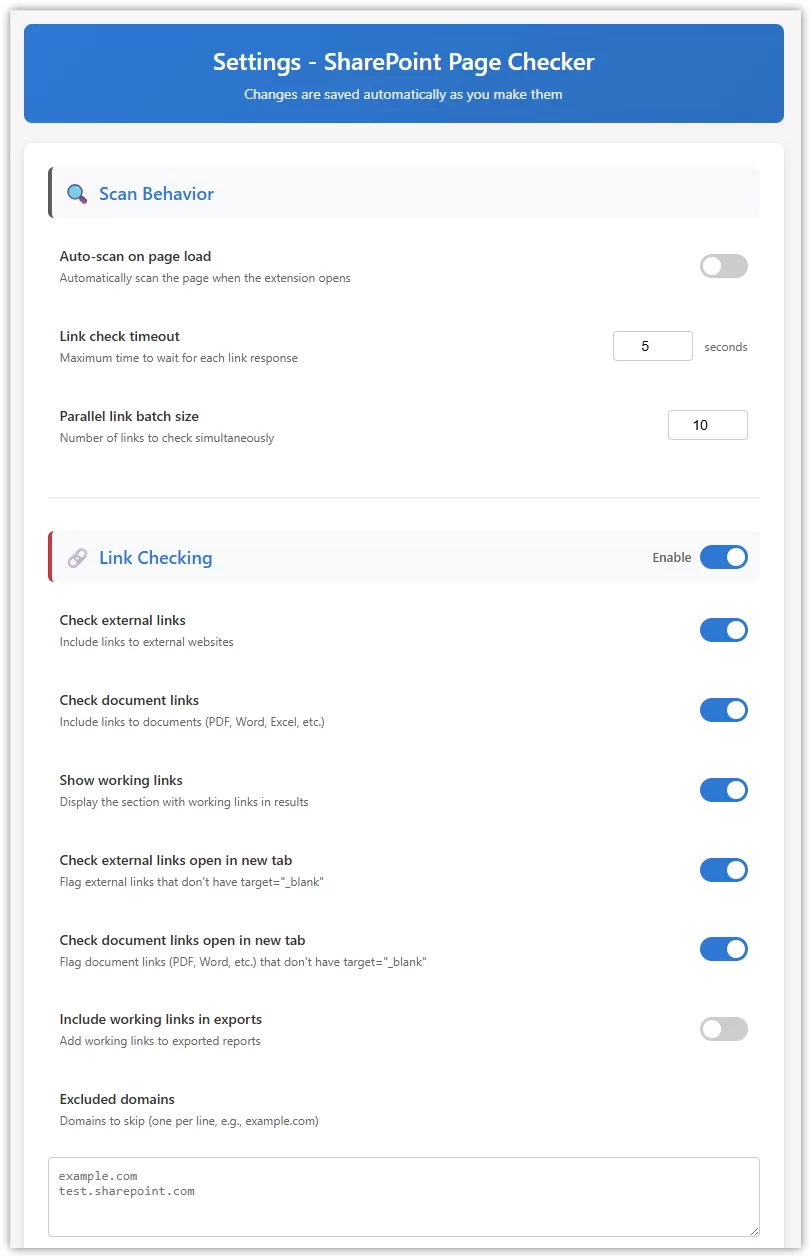
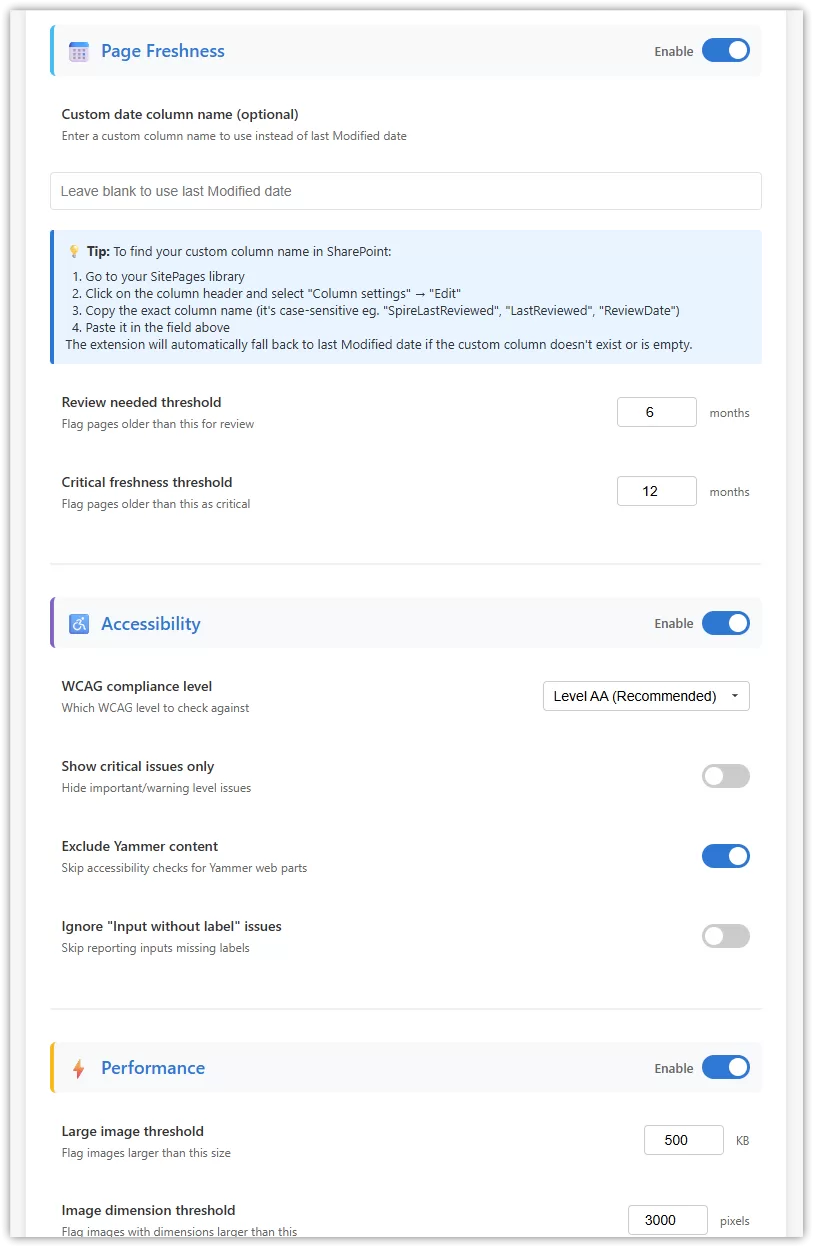
The extension comes with sensible defaults, but you can customise it to match your organisation’s standards using it’s Settings page:
– Link Checking: Set timeout values, exclude specific domains, choose whether to display working links
– Page Freshness: Define your own thresholds for “needs review” and “critically outdated”
– Accessibility: Choose WCAG level (A, AA, or AAA), filter by critical issues only
– Performance: Set custom thresholds for image sizes and dimensions
– Spell Check: Choose your English dialect, add custom terms to ignore (like your company name or product names)
Who Is It For?
SharePoint Page Checker is perfect for:
– Content Authors: Ensure your pages are error-free before publishing
– Site Owners: Maintain quality across your SharePoint site
– Accessibility Coordinators: Verify WCAG compliance quickly
– IT Teams: Audit multiple pages for broken links and technical issues
– Communications Teams: Keep intranet content fresh and accurate
Privacy First
Your privacy matters. SharePoint Page Checker:
– Runs entirely in your browser
– Never collects or stores your data
– Doesn’t send information to external servers
– Only reads page content when you click “Scan”
– Never modifies your SharePoint pages
Get Started Today
Install SharePoint Page Checker from the Chrome Web Store
The extension is completely free and takes less than a minute to install. Start scanning your pages today and discover issues you never knew existed.
Version 1.2.0 – What’s New
The latest version includes:
– Page Freshness Checking: Automatically detect outdated content
– Spell Checking: Catch typos with support for multiple English dialects
– Improved Settings: Better organized with color-coded sections
– Enhanced Performance: Faster scans and better handling of complex pages


Campbell Smythe
Author
I am an intranet specialist working in SharePoint and other Microsoft 365 technologies.
Recent articles
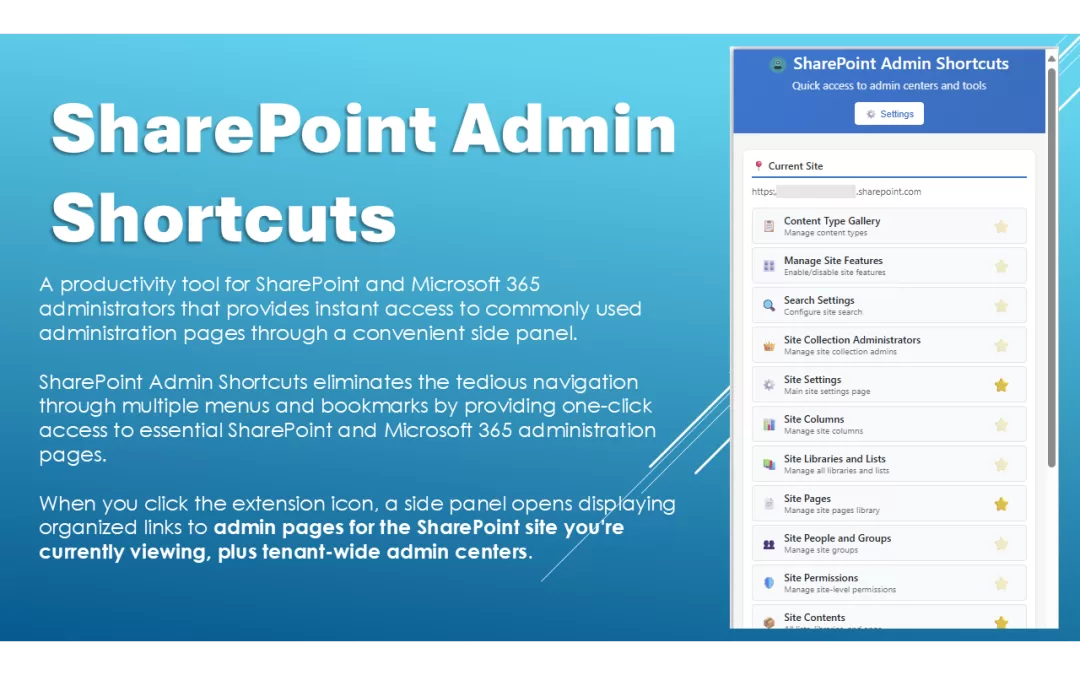
SharePoint: SharePoint Admin Shortcuts Chrome Extension
Use a browser extension that gets you to key SharePoint admin pages quickly. No more browsing through SharePoint menus. Fully configurable – this browser extension gets you there fast.

SharePoint: Update original First Published Date of a News Post
I recently needed to update a handful of SharePoint News Posts. The News Posts had been created by copying existing posts and had kept the original FirstPublishedDate, which meant that the posts were being displayed in order based on the original date.
Here’s a script you can modify and use in order to modify the FirstPublishedDate field on those posts.

SharePoint: Using Microsoft Stock images in SharePoint intranets
Are there any attribution requirements to using Microsoft’s Stock Images found in SharePoint Modern? This is what I learned when wanting to stay in line with copyright requirements…
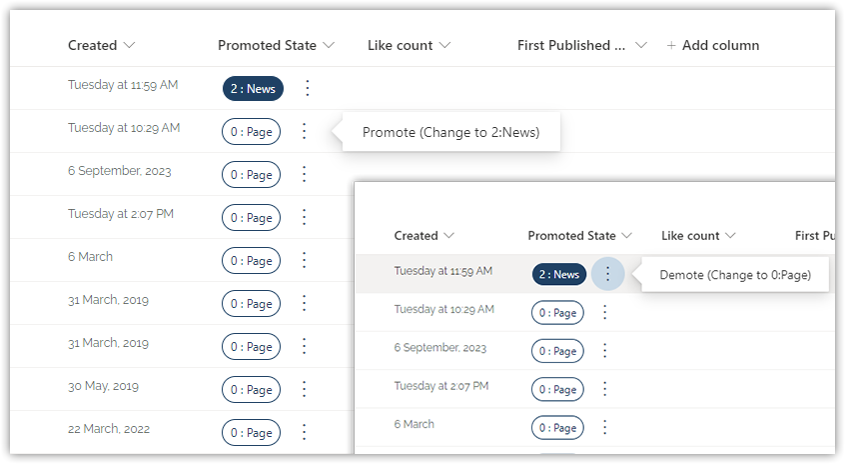
SharePoint: Convert Pages to News Posts and News Posts to Pages
I needed a solution which would make it easy for our intranet team to make changes to the Promoted State of Pages and News Posts in SharePoint SitePages.
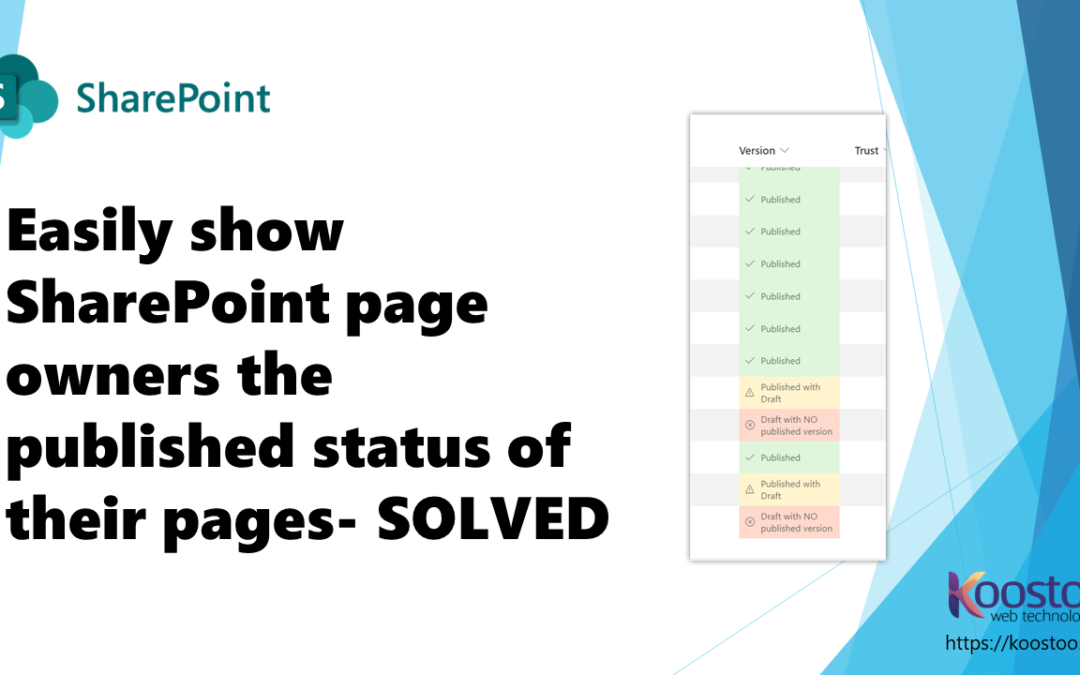
SharePoint: Show content owners page published status easily
We have found it useful for page owners to easily see the published status of their pages. Learn how to easily format the column using JSON code.