
INTRANETS
SharePoint: SharePoint Admin Shortcuts Chrome Extension
Use a browser extension that gets you to key SharePoint admin pages quickly. No more browsing through SharePoint menus. Fully configurable – this browser extension gets you there fast.
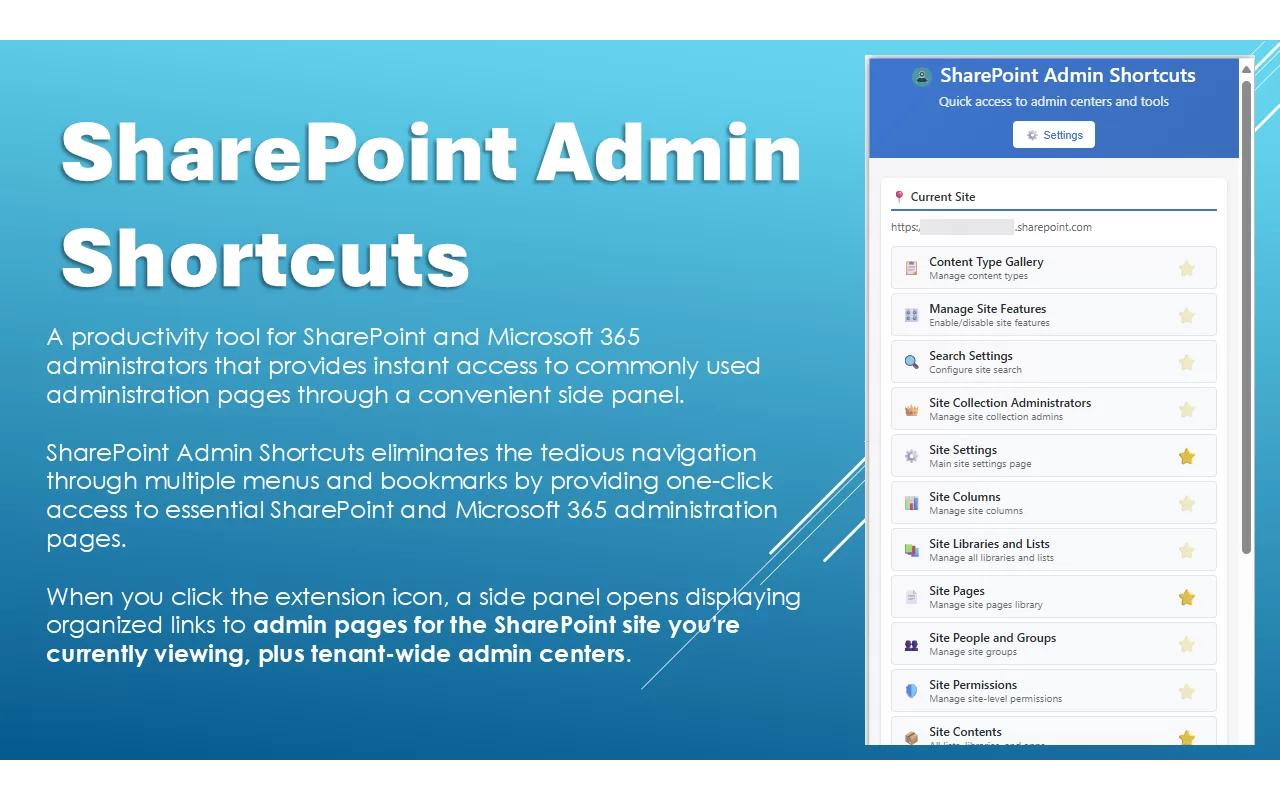
Introducing SharePoint Admin Shortcuts: Making SharePoint Administration Easier
If you’re a SharePoint administrator or work with Microsoft 365 on a daily basis, you know the drill. You need to check site permissions, so you click through the settings gear, navigate to site settings, scroll down to find the permissions link, and finally get where you need to be. Then five minutes later, you need to check the recycle bin, and you’re clicking through menus all over again. Sound familiar?
That’s exactly why I built SharePoint Admin Shortcuts. It’s a browser extension for Edge or Chrome that puts all those admin pages you visit constantly right at your fingertips, no menu diving required.
What Does SharePoint Admin Shortcuts Actually Do?
Think of it as your personal shortcut bar for SharePoint and Microsoft 365 admin pages. Once installed, you get instant access to 58 of the most commonly used admin pages, all organised in a way that actually makes sense. Hey and if it doesn’t for you – you can customise the order and make changes that work for you.
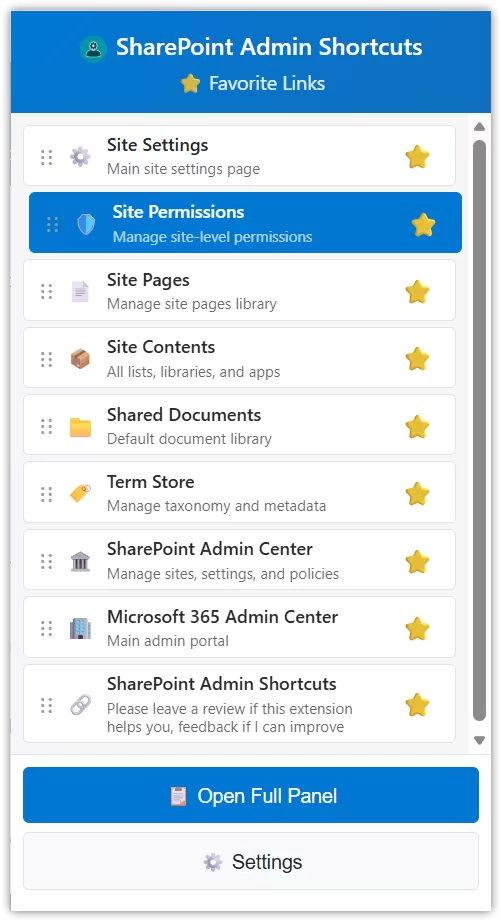
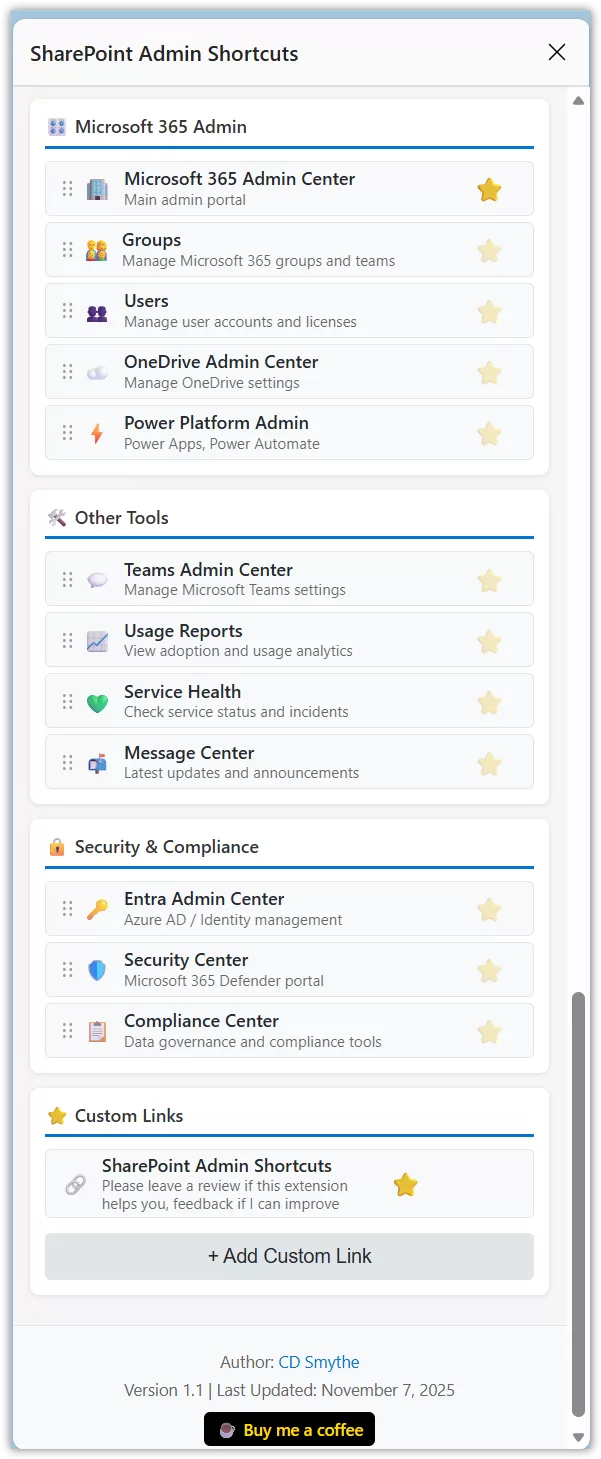
Click the extension icon in your Chrome toolbar and you’ll see your favorite admin pages ready to go. Need the full list? Open the side panel and browse through everything from site-specific SharePoint links to tenant-level admin centers, security portals, and compliance tools. Anything you need to add? Use the Custom links section to add your own. The favorites are easy to manage – simply click the Star to add/remove.
The Smart Part: Context-Aware Links
Here’s where it gets really handy. When you’re working on a specific SharePoint site, the extension automatically detects where you are and shows you relevant links for that site. Need to check that site’s recycle bin? It’s right there. Want to manage site permissions or view storage metrics? One click away.
The extension knows you’re on a SharePoint site and adapts accordingly, showing you direct links to site settings, content types, site columns, term store management, and all those other pages buried deep in the settings menus.
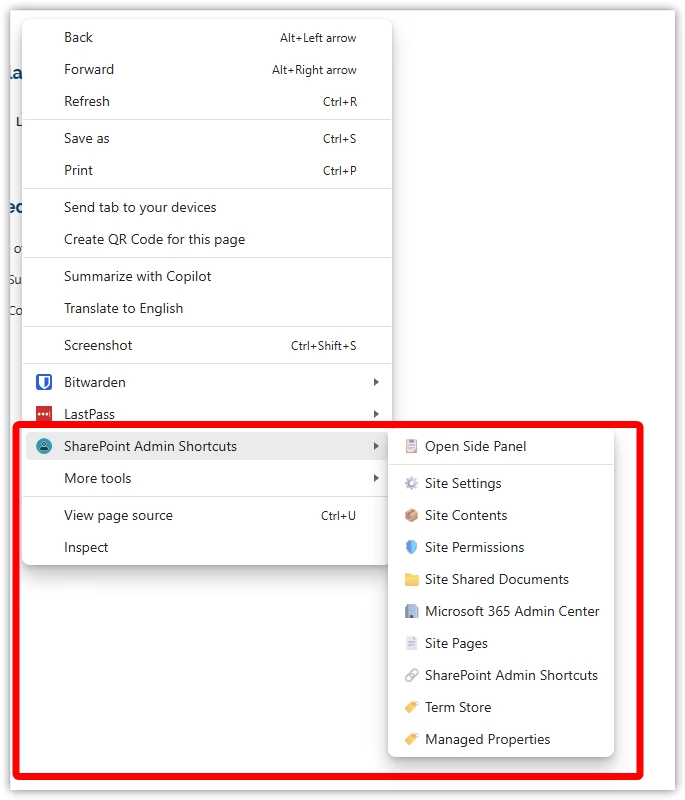
Right Click – Context menu enabled
SharePoint Admin Shortcuts is also context menu enabled – this means whenever you are ona SharePoint page you can right click anywhere on the page and access your favourited admin links.
Customise It Your Way
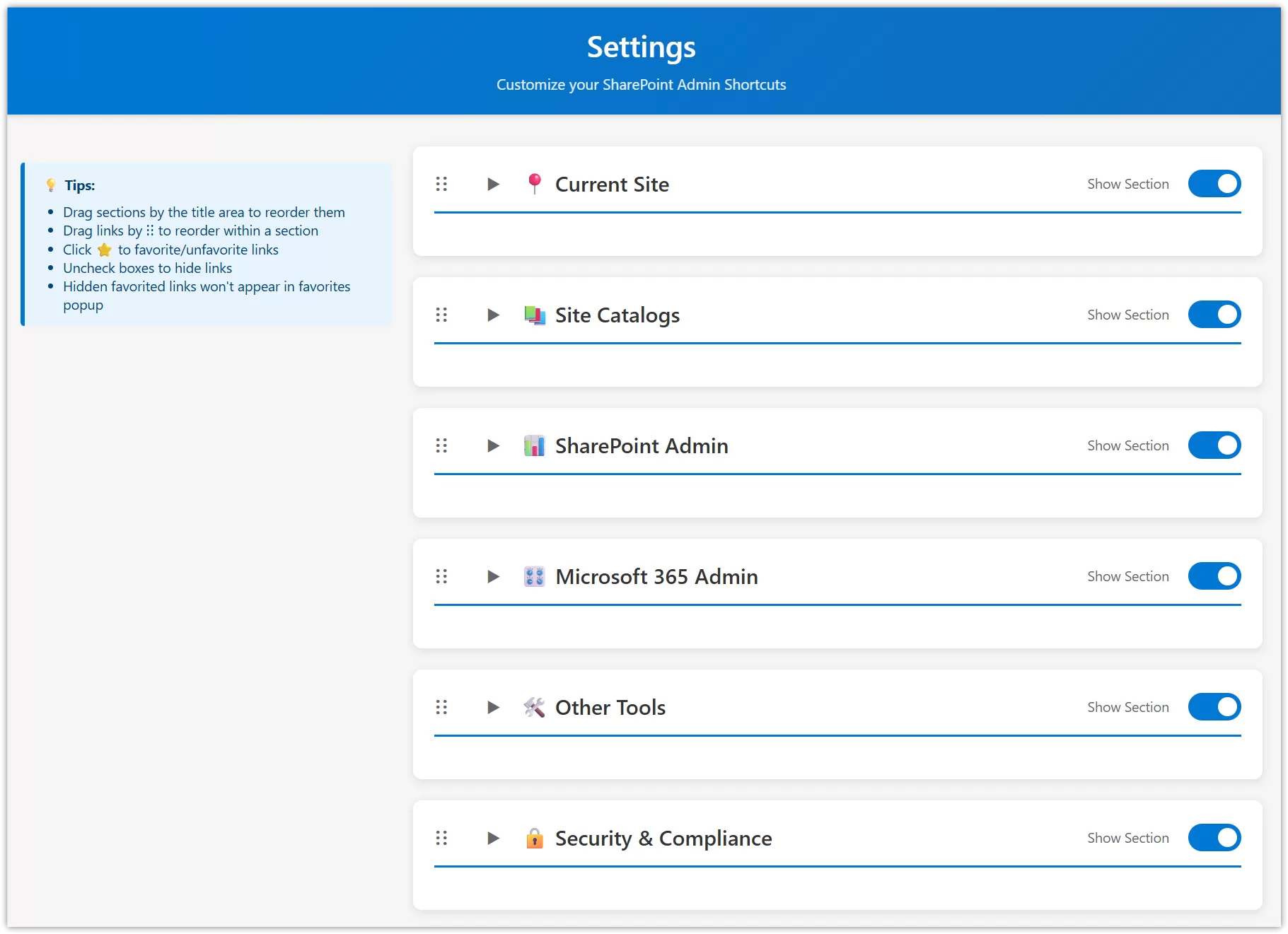
Everyone’s workflow is different, so the extension is fully customisable. Star your most-used admin pages and they’ll appear in the quick-access favorites popup. Reorder sections and links by dragging them around until they match how you actually work. Hide the ones you never use to keep things clean.
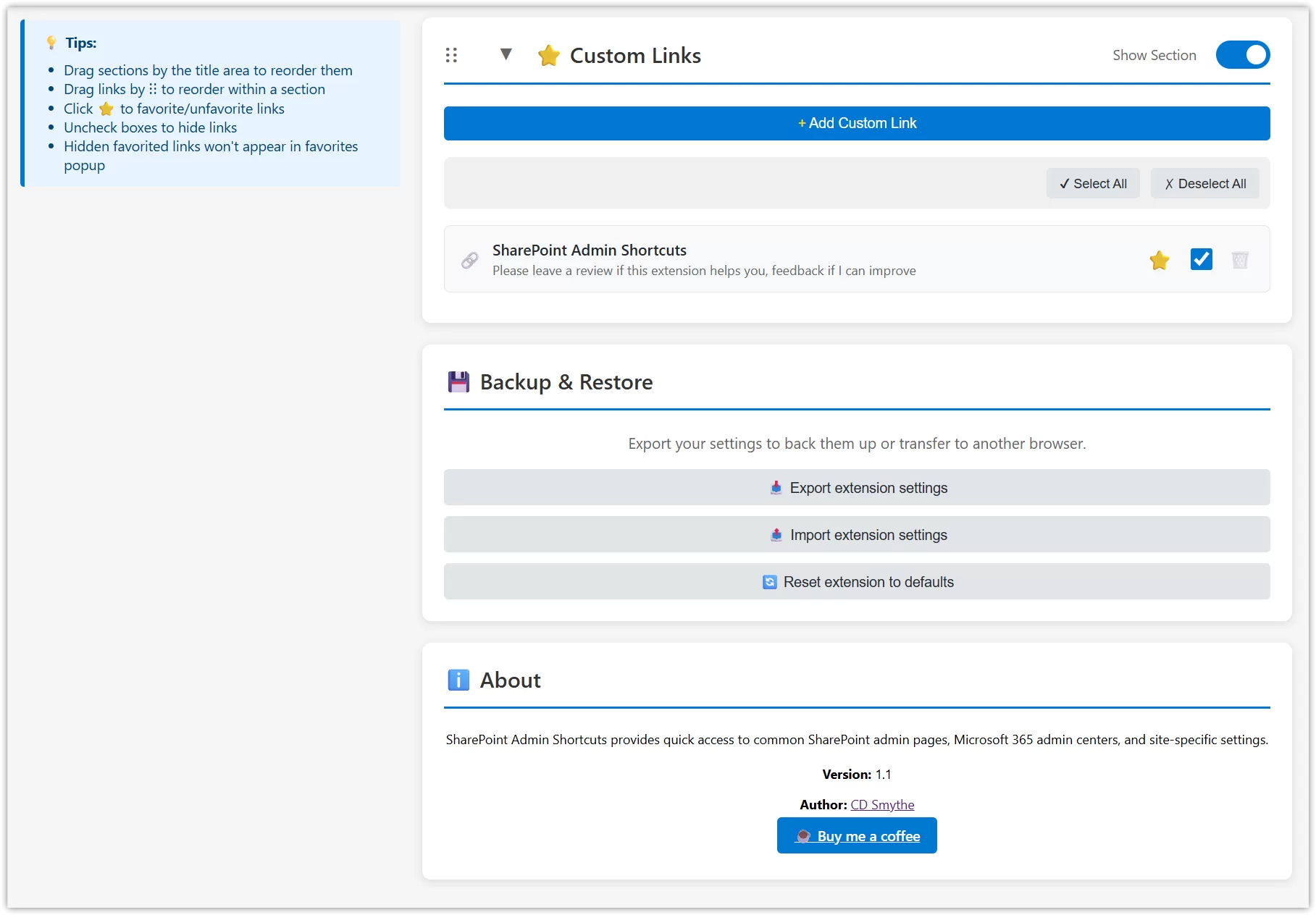
You can even add your own custom links. Maybe you have a specific admin portal or internal tool you access frequently. Just add it to the extension with a custom name and icon, and it lives right alongside all the Microsoft admin links.

Built for Administrators Who Value Their Time
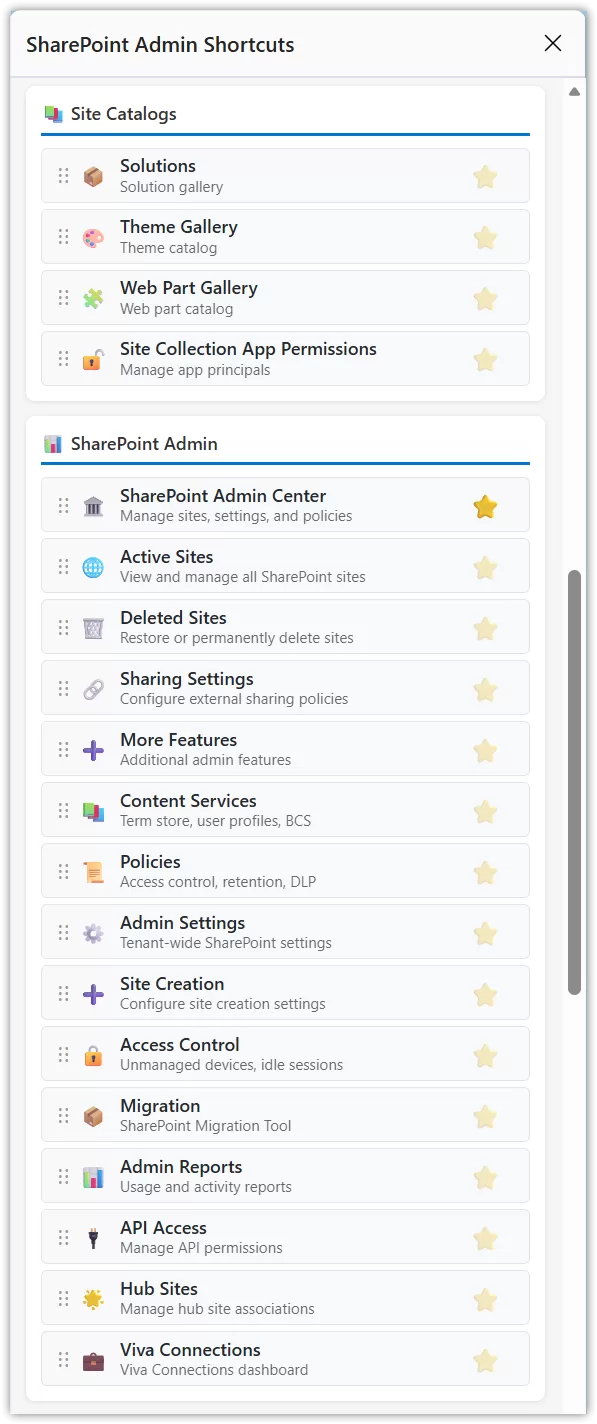
The extension includes links to all the major admin centers you work with daily. The SharePoint Admin Center and all its sub-pages like active sites, deleted sites, sharing settings, and content services. The Microsoft 365 Admin Center with quick access to users, groups, and OneDrive admin. The Security Center, Compliance Center (now called Purview), and Entra Admin Center for identity management.
Plus all those specialised tools like the Teams Admin Center, Power Platform Admin, usage reports, service health, and the message center where Microsoft posts all their updates.
Site-Level Links When You Need Them
When you’re working on a specific SharePoint site, you get access to 27 site-specific shortcuts. Everything from basic stuff like site contents and shared documents to more advanced features like the SPFx workbench for developers, audit log reports, workflow settings, and regional configuration. SharePoint Admin Shortcuts just simplifies and speeds up you getting where you need to be.
No more trying to remember the exact menu path to get to site collection administrators or the term store. They’re all just one click away.
Your Settings, Everywhere
All your customisations sync across your Chrome browsers using Chrome’s built-in sync storage. Set up your favorites and preferences on your work computer, and they’ll be waiting for you when you log into Chrome on your laptop. Export your settings if you want to back them up or share your perfect configuration with a colleague.
Privacy and Security First
I built this extension with a simple philosophy: it should help you work faster without getting in your way or compromising your data. The extension doesn’t collect any information about you or your browsing. It doesn’t send data anywhere. Everything stays local in your browser.
It only needs permission to detect when you’re on a SharePoint site so it can show you the relevant links. No content access, no tracking, no analytics. Just straightforward functionality that does exactly what it says.
Getting Started with SharePoint Admin Shortcuts is Simple
Install the extension from the Chrome Web Store and you’re ready to go. Click the icon to see the favorites popup, which starts with a common lst of links pre-favorited. Click “Open Full Panel” to browse all available links organised into logical sections. Visit the Settings page to customise everything to match your workflow.
The first time you use it, you might spend a few minutes starring your favorite links and hiding the ones you don’t need. After that, it’s just there when you need it, saving you countless clicks and menu navigations every single day.
Why I Built This
As someone who works with SharePoint administration regularly, I got tired of bookmarking dozens of admin pages and trying to keep them organized. I wanted something smarter that would adapt based on what I was doing and keep everything in one place that I could customise.
Version 1.1 represents a complete refactoring of the code to make it faster and more efficient. I replaced polling mechanisms with event-driven architecture for a 95 percent performance improvement. The result is a lean, fast tool that just works.
Who Should Use SharePoint Admin Shortcuts?
If you’re a SharePoint administrator, Microsoft 365 admin, or IT professional who regularly accesses admin portals and site settings, this extension will save you time every single day. Whether you’re managing hundreds of sites or just supporting a few teams, having instant access to the right admin page at the right moment makes your job easier.
It’s particularly useful if you work across multiple site collections or switch between different admin centers throughout your day. Instead of keeping track of a dozen browser tabs or searching through bookmarks, everything you need is organized and accessible in one place.
Try It Out
SharePoint Admin Shortcuts is available now in the Chrome Web Store. It’s free to use and I keep it updated as Microsoft adds new admin features and changes their portal URLs.
If you find it useful, I’d appreciate a review on the Chrome Web Store. And if you have ideas for features you’d like to see, I’m always listening to feedback from people actually using it in the field.
Here’s to spending less time clicking through menus and more time actually getting work done.
New features in Version 1.4 December 2025
Major UX Improvements:
- Right-Click Context Menu: Access up to 10 favorite links instantly via right-click on any SharePoint page
- Fuzzy Search: Find links even with typos (30% character difference tolerance using Levenshtein distance algorithm)
- Enhanced Drag Feedback: Visual animations and indicators when reordering favorites via drag-and-drop
- Current List/Library Name: Automatically displays the name of the current list or library you’re viewing
New Features:
- Added “Managed Properties” link to quickly access site collection managed properties
- Reorganized Current Site links into 12 logical categories for improved navigation


Campbell Smythe
Author
I am an intranet specialist working in SharePoint and other Microsoft 365 technologies.
Recent articles
SharePoint: Page Checker Chrome Extension
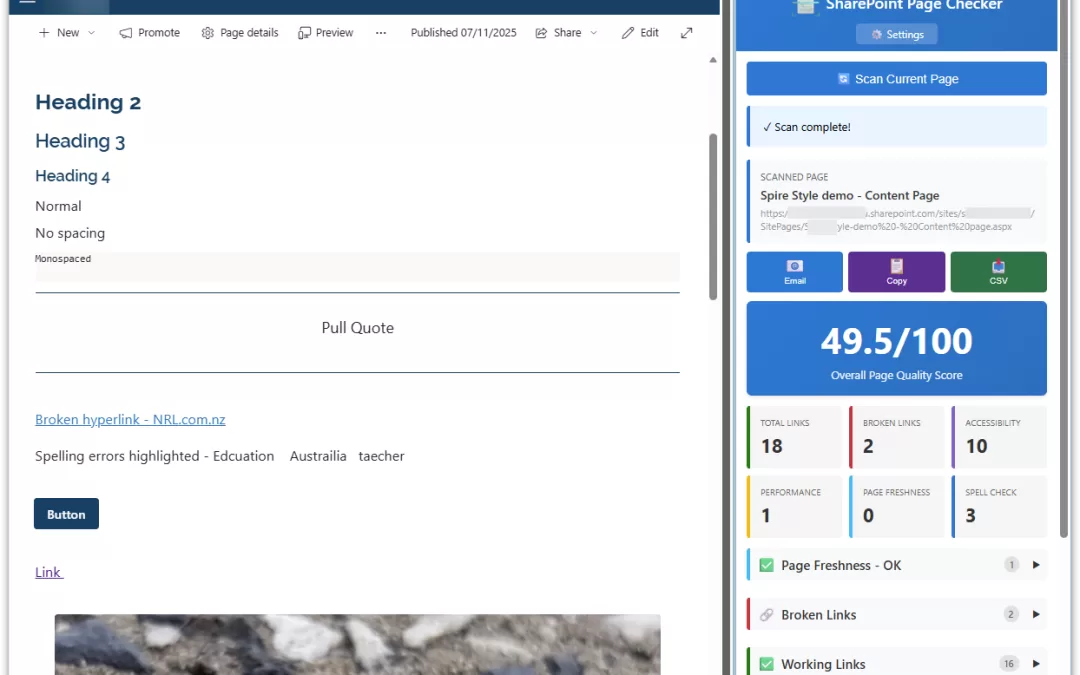
SharePoint Page Checker is a free Chrome extension that scans your SharePoint pages to identify potential issues before they impact your users. Think of it as having a quality assurance expert review every page with just one click.

SharePoint: Update original First Published Date of a News Post
I recently needed to update a handful of SharePoint News Posts. The News Posts had been created by copying existing posts and had kept the original FirstPublishedDate, which meant that the posts were being displayed in order based on the original date.
Here’s a script you can modify and use in order to modify the FirstPublishedDate field on those posts.
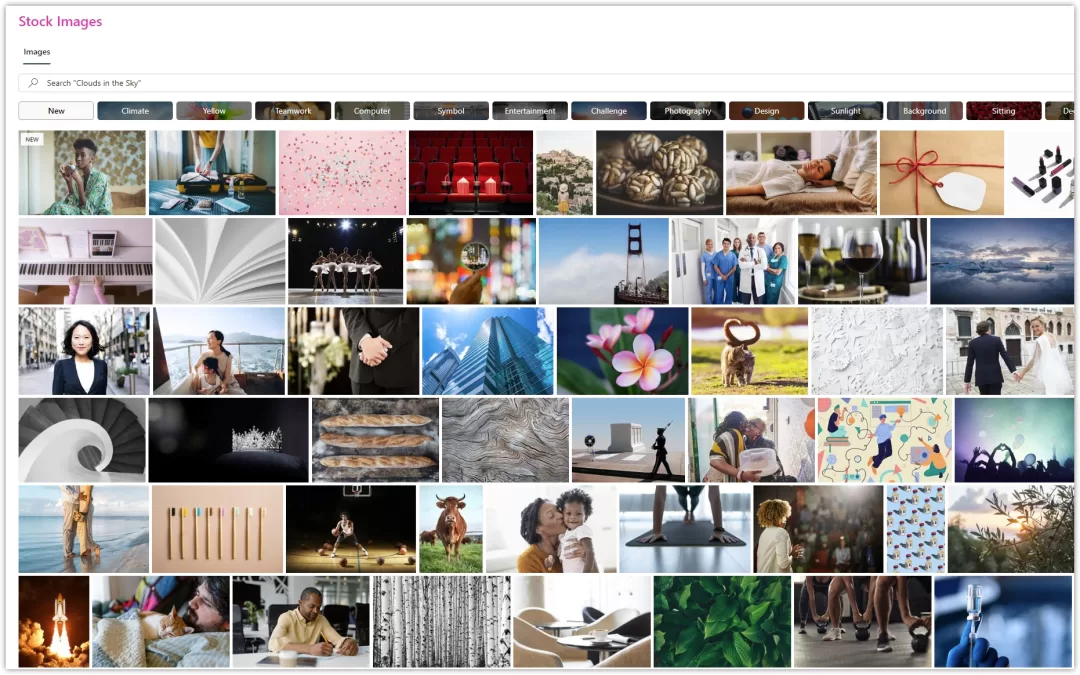
SharePoint: Using Microsoft Stock images in SharePoint intranets
Are there any attribution requirements to using Microsoft’s Stock Images found in SharePoint Modern? This is what I learned when wanting to stay in line with copyright requirements…
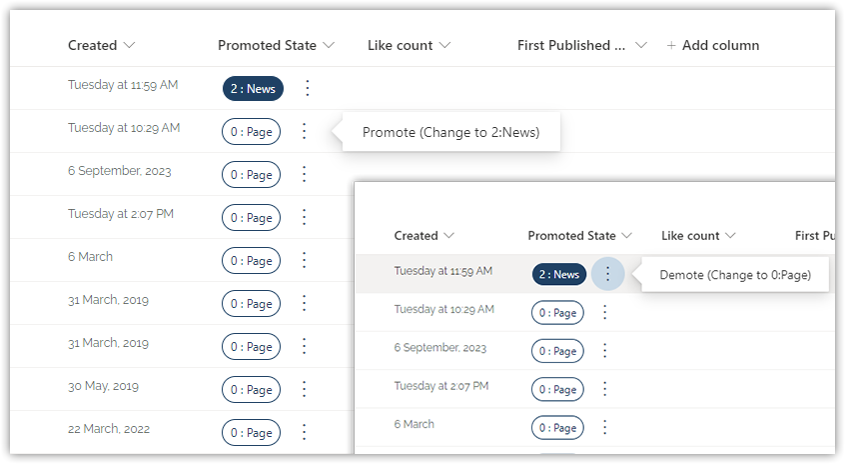
SharePoint: Convert Pages to News Posts and News Posts to Pages
I needed a solution which would make it easy for our intranet team to make changes to the Promoted State of Pages and News Posts in SharePoint SitePages.
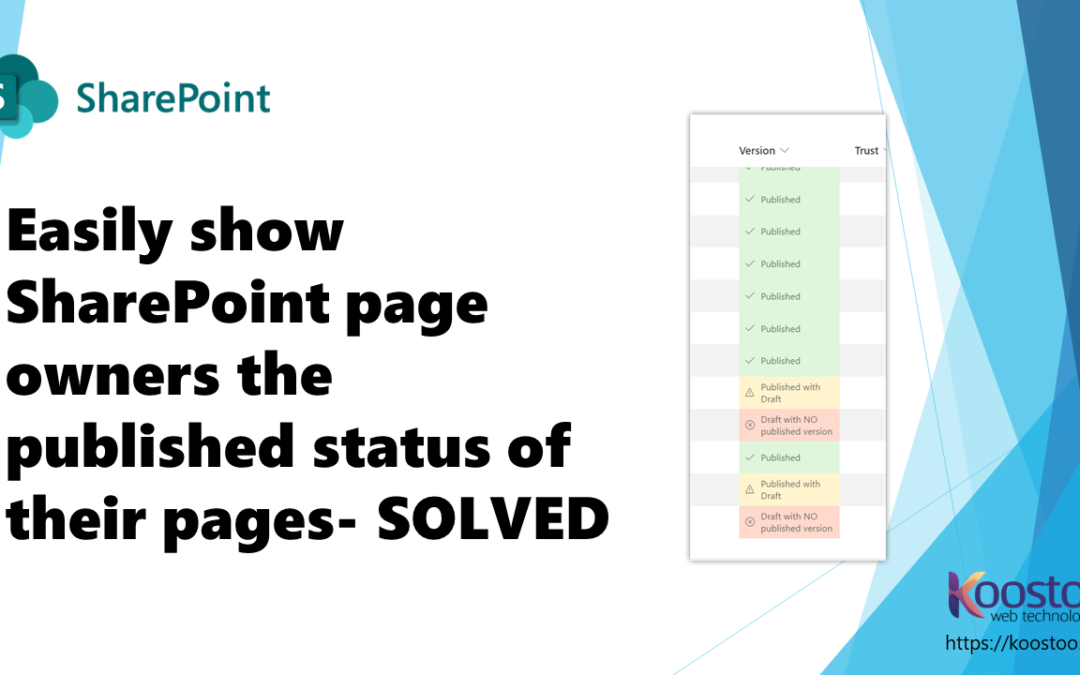
SharePoint: Show content owners page published status easily
We have found it useful for page owners to easily see the published status of their pages. Learn how to easily format the column using JSON code.